Use the Navigate360 Student app to quickly find your Cane Navigator and schedule an appointment for support.
- Download the Navigate360 Student app from the App Store or Google Play.
- Open the app and log in using your UM credentials.
- On the bottom menu, select the person icon labeled Appointments, located to the right of the Home icon.
- On the Appointments page, select My Team to locate your Cane Navigator.
- Tip: You may select Make an Appointment or select your Cane Navigator and follow the prompts to choose an available appointment time and schedule your appointment!
Prepare for your Appointment
Log into Navigate in your browser directly at umiami.campus.eab.com
- From the Student Home page, scroll down.
- Locate the section at the bottom right of the screen titled Your Success Team
- This section will list your Cane Navigator, as well as any other assigned members of your success team.
- Tip: You schedule an appointment following the workflow below:
- Click on Make an Appointment
- Select Cane Navigation (Undergraduate Advising)
- Select the desired Service
- Select the desire date, and click Find Available Time
- Select the time, appointment type, and location
- Click Schedule
- You will receive email confirmation of your appointment.
Prepare for your Appointment
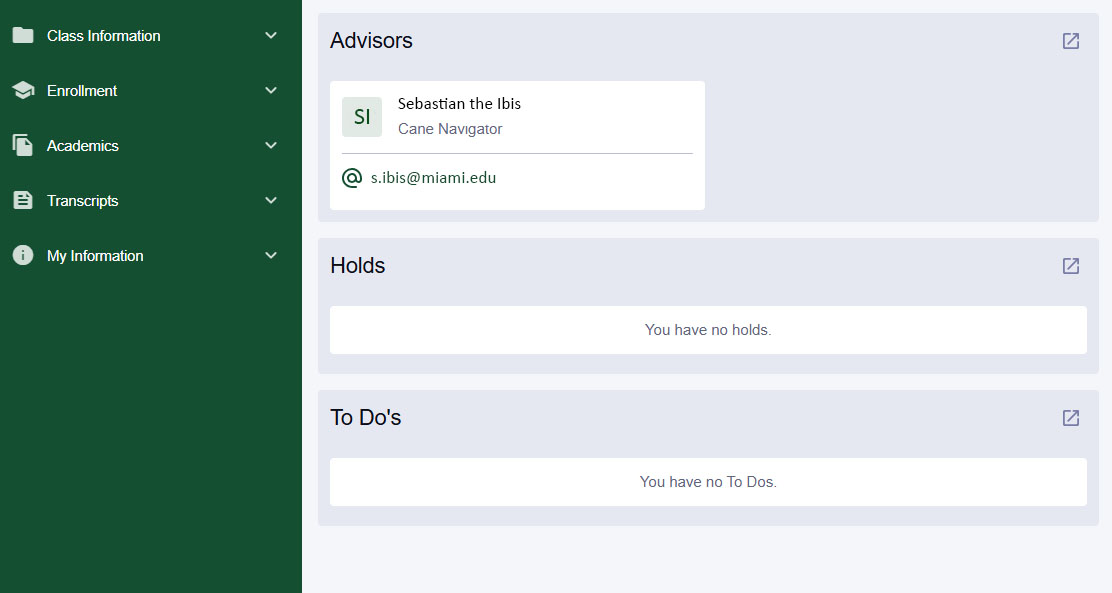
You may find your assigned Cane Navigator in your Student Dashboard by logging into CaneLink.
- Your Cane navigator's information will be displayed under Advisors as shown in the screenshot below:
- Alternatively, you may also view this information by following the steps below:
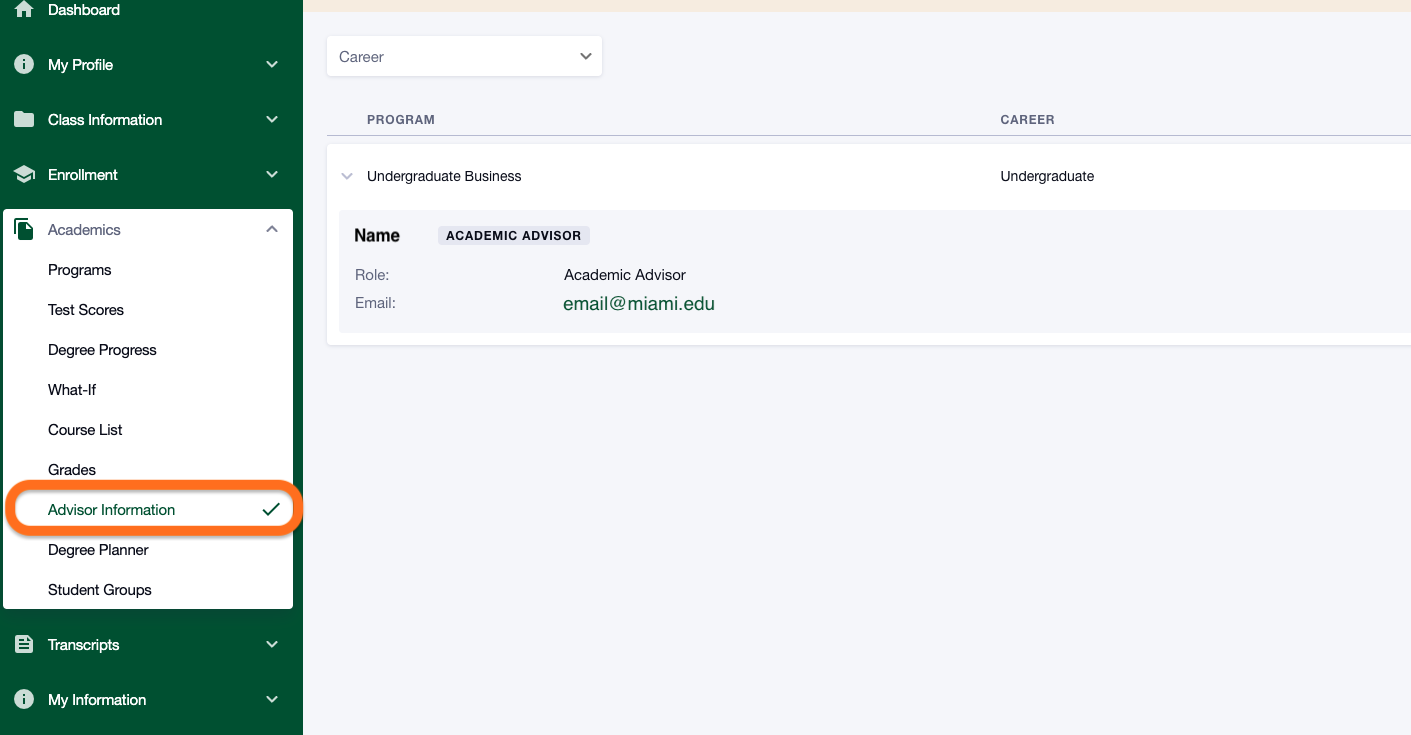
- Click on the Academics section of the CaneLink menu on the left-side of the screen.
- Then, click Advisor Information.
- The image below shows what this screen looks like in CaneLink: